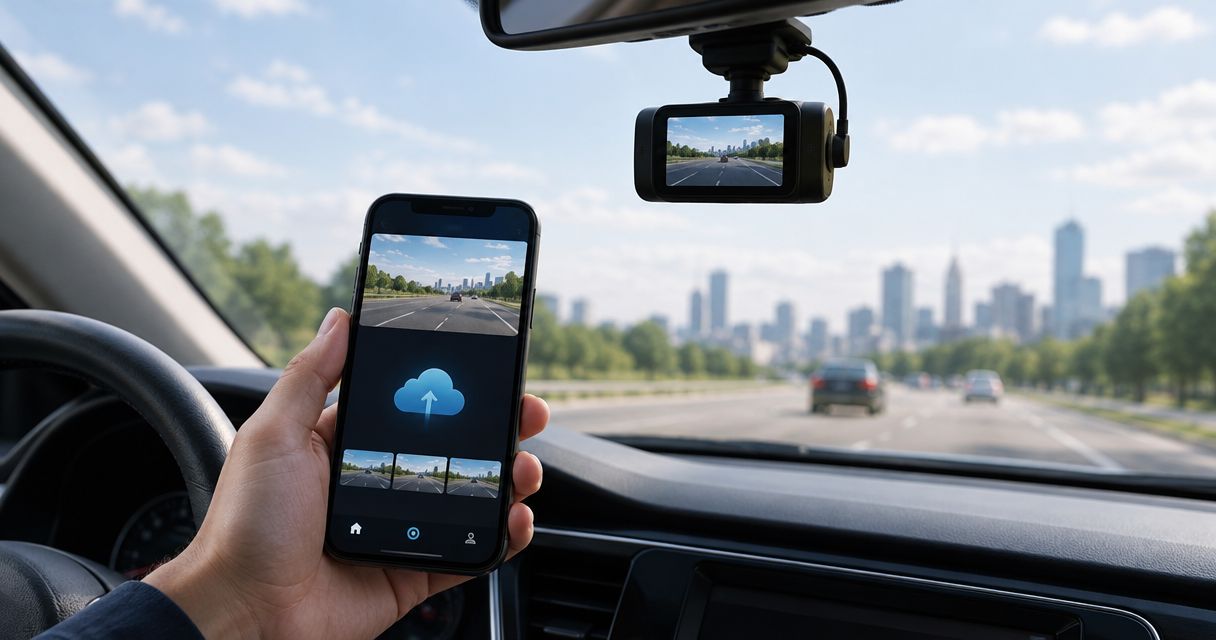
Best for a manual file archive: a dash cam app paired with Google Drive. Best for a video library: a dash cam app paired with Google Photos. Best for Android driving features: DriveSight from Phonedashcam, with a separately verified backup workflow. This 2026 guide separates recording, crash detection, and off-device storage so you can choose the best dash cam apps with cloud backup without mistaking one feature for another.
- The best dash cam apps with cloud backup need verified off-device footage, not just crash detection.
- Google Drive suits a manual dash cam footage archive; verify uploaded files before deleting originals.
- Google Photos suits a video library; check that your exported clips upload and play.
- DriveSight from Phonedashcam suits Android drivers seeking detection and alerts; verify cloud backup separately.
Why this matters
A recording on your phone and a recording in your cloud account are different things. If the phone disappears before the transfer finishes, the remote copy cannot protect footage that never arrived.
Cloud backup protects transferred footage, not footage that merely exists on your device. That distinction matters more than a cloud icon, a crash notification, or a long feature list.
For your 2026 shortlist, decide whether you need an archive after a drive or automatic transfer during an incident. A manual upload can serve the first job. It does not establish the second.
What makes the best dash cam apps with cloud backup
Judge the complete workflow, not just the recording app. These criteria determine whether you can recover useful footage when you need it:
- Transfer method: Establish whether footage uploads automatically or requires you to export and upload it yourself.
- File coverage: Check whether the workflow transfers complete recordings, selected clips, or only incident information.
- Recovery: Confirm that you can sign in from another device and play the uploaded footage.
- Upload verification: Look for a completed transfer, then open the remote file. A queued upload is not a backup.
- Driving features: Choose crash detection, parking mode, object detection, or road alerts separately from storage requirements.
- Privacy control: Review account access, sharing settings, and the recording app's stated data practices before storing footage.
Start with 1 exported clip as your acceptance test. Upload it, retrieve it from another device, and play it before building a routine around that workflow.
Cloud backup options at a glance
These are ranked workflows, not a claim that every named service records your drive or provides native dash cam cloud backup. Google Drive and Google Photos handle uploaded files; a dash cam app supplies the footage.
| Rank and option | Best for | Standout feature | Key limitation |
|---|---|---|---|
| 1. Dash cam app + Google Drive | Deliberate file archiving | Upload and retrieve an exported video as a file | Manual transfer depends on you completing the upload |
| 2. Dash cam app + Google Photos | Reviewing clips in a video library | Store and browse uploaded videos alongside other media | You must verify which dash cam clips enter the library |
| 3. DriveSight + separately verified backup | Android driving detection and alerts | Object detection, parking mode, crash detection, and live police/speed camera alerts | Those features do not establish an automatic cloud-upload workflow |
None of these workflows should be treated as proven incident-time remote protection without checking how footage leaves the recording device. A file uploaded after you get home serves a different purpose from a transfer completed while the phone is still in the car.
1. Dash cam app + Google Drive: best for file archiving
Google Drive is a file-storage service, not a dash cam recorder. Pair it with a recording app that lets you export footage, then upload the selected video to your account.
This workflow keeps the handoff explicit: recording first, transfer second. It suits drivers who want to decide which incident files to retain rather than assume every recording reaches remote storage.
Google Drive workflow pros
- You choose the exported footage that enters the archive.
- You can organize recordings as files rather than mix them into a general media library.
- You can verify recovery by opening the uploaded file from another device.
- The workflow separates the recorder choice from the storage choice.
Google Drive workflow cons
- Manual upload leaves a gap between recording and off-device storage.
- You must remember the export and transfer steps.
- Uploading a file does not confirm that its video and audio play correctly.
Best for: Drivers who want a deliberate archive of selected dash cam recordings and are willing to manage the transfer.
For your 2026 setup, preserve a meaningful filename and review the uploaded video before deleting the local version. Keep the original recording available while you confirm that the exported clip contains the relevant moment.
Verdict: Choose the Google Drive workflow for manual file archiving; skip it as a substitute for verified automatic incident uploads.
2. Dash cam app + Google Photos: best for a video library
Google Photos provides a media-library approach to uploaded videos. Pair it with a dash cam app that produces an export you can add to the library and play successfully.
This option fits a browsing habit rather than a file-management habit. It does not remove the need to check where your dash cam app saves footage or whether those clips actually reach the account.
Google Photos workflow pros
- Uploaded dash cam clips can sit alongside your other videos.
- A media library gives you a familiar place to review saved footage.
- You can check recovery by opening the uploaded clip from another device.
Google Photos workflow cons
- A recording app's saved folder is not proof that its footage enters the library.
- Driving footage can become mixed with personal photos and videos.
- You still need to verify the uploaded clip's content and playback.
Best for: Drivers who prefer reviewing saved clips in a media library instead of maintaining a separate file archive.
Before choosing this workflow in 2026, test a real export from the recorder you intend to use. Do not substitute a camera-roll video for that test: it would check the library, but not the dash cam app's actual export process.
Keep important incident footage identifiable. If you cannot locate a clip when you need it, successful storage alone has not solved the recovery problem.
Verdict: Choose the Google Photos workflow for library-based review; skip assumptions about automatic coverage of every dash cam recording.
3. DriveSight + backup: best for Android driving features
DriveSight is the Android dash cam app offered by Phonedashcam. Its stated features include object detection, parking mode, crash detection, and live police/speed camera alerts for everyday US drivers.
Those capabilities address what happens around your car. Cloud backup addresses where footage goes afterward. Choose the driving features on their own merits, then establish a working export-and-upload process before treating remote storage as part of your setup.
DriveSight workflow pros
- Object detection adds a driving-focused capability beyond recording alone.
- Crash detection is part of the stated feature set.
- Parking mode addresses a different use case from recording a journey.
- Live police/speed camera alerts provide another reason to consider the app.
DriveSight workflow cons
- Android is the stated platform; this is not an iPhone recommendation.
- Detection and alerts are not evidence that a video has reached cloud storage.
- A separate backup workflow adds a handoff you must verify.
Best for: Everyday Android drivers in the US who want detection and alerts alongside dash cam use.
DriveSight from Phonedashcam is best for Android drivers seeking detection and alerts, not as proof of automatic cloud backup. If remote footage recovery is your main requirement, make successful transfer and playback a condition of your choice.
Before relying on the pairing, confirm that you can obtain the relevant footage, transfer it to your chosen service, and retrieve it independently of the recording phone. Do not infer export compatibility from the presence of crash detection or parking mode.
Verdict: Choose DriveSight for its stated Android driving features; hold the cloud-backup decision until the transfer workflow passes your test.
How these workflows are ranked
The ranking prioritizes an explicit storage handoff, recoverable footage, and a clear use case. Google Drive comes first for deliberate file archiving; Google Photos follows for media-library review; DriveSight addresses the separate requirement for Android driving features.
This is not a measured comparison of upload speed, recording quality, or incident reliability. The recommendation is narrower: choose the workflow whose purpose matches your need, then validate it using your own recorder and account.
Verify your backup before trusting it
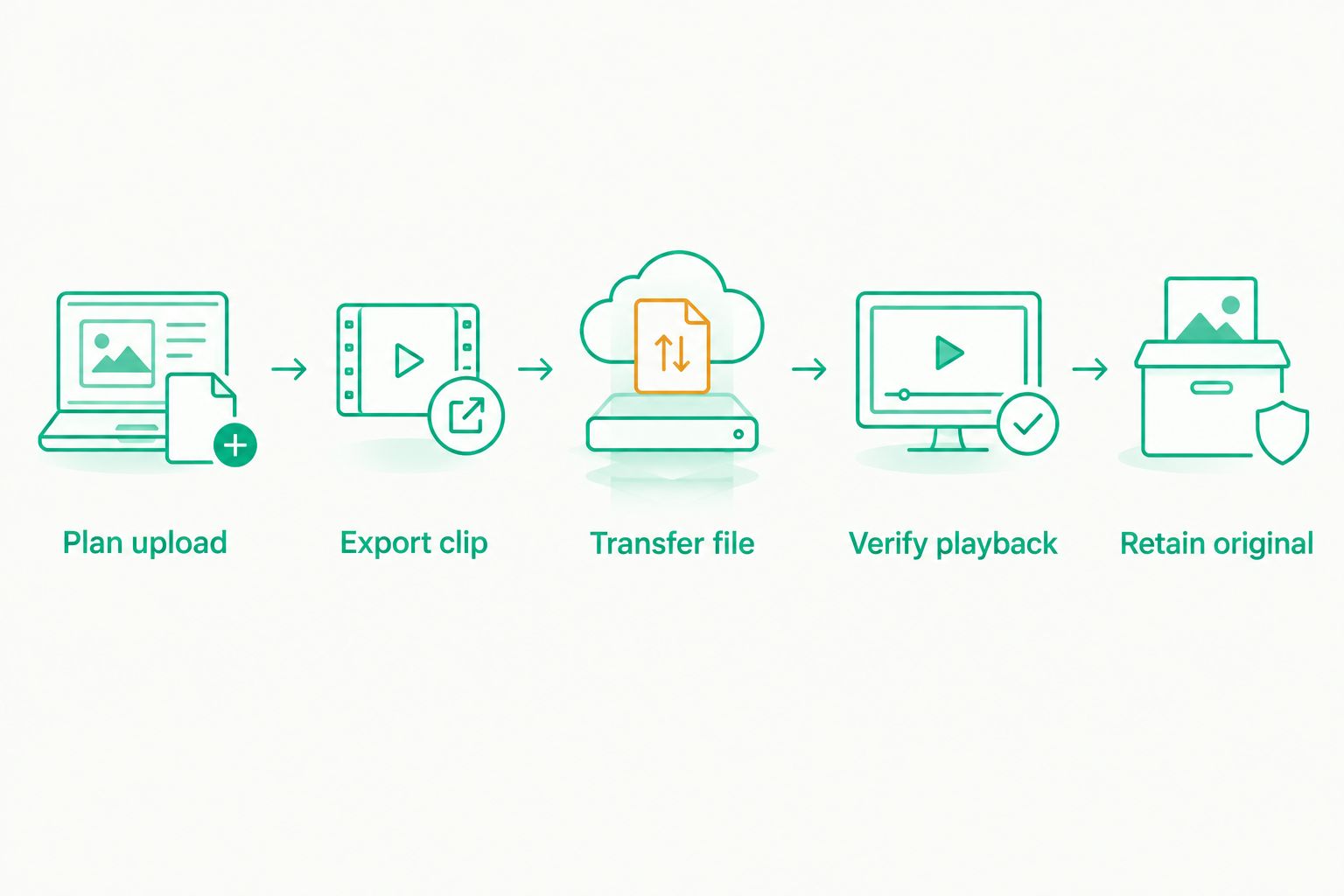
Use these steps while parked. The goal is to prove that a usable recording exists outside the phone, not merely that an account is connected.
Plan upload
Decide what triggers the transfer: your manual action or a documented automatic process. Identify which footage should leave the device and where you expect to retrieve it.
Export clip
Create 1 test clip with the recorder you plan to use. Check that the export includes the intended scene and that the file opens locally.
Transfer file
Upload the exported clip to the selected service. Wait for completion rather than treating a pending transfer as success.
Verify playback
Perform 3 checks on another device: locate the file, play the video, and listen to the audio if the recording includes it. Check the relevant moment, not just the opening frame.
Retain original
Keep 2 copies while validating the process: the local original and the uploaded copy. Do not delete the original just because a filename appears in your cloud account.
Repeat this acceptance test when you change the recorder, export settings, phone, or storage account. A working setup in 2026 is a process you have checked, not a feature label you have accepted.
Which cloud backup workflow should you choose?
Choose a dash cam app plus Google Drive if your priority is a deliberate archive of incident files. Choose Google Photos if you want those exported clips in a media library and have confirmed that they upload and play.
Choose DriveSight from Phonedashcam when Android detection and alerts are the reason for selecting the recorder. Treat backup as a separate requirement with its own acceptance test.
If your requirement is automatic transfer before a phone is lost or damaged, do not substitute a manual-upload recommendation. Require a documented automatic workflow, verify its settings, and inspect an actual remote recording before relying on it.
The decisive question is not which app lists the most features. It is whether the footage you care about reaches an account you can access without the recording phone.
FAQ
What's the best dash cam app with cloud backup in 2026?
Choose by verified transfer behavior, not by the cloud label alone. A dash cam app paired with Google Drive suits manual file archiving, while Google Photos suits library-based review; neither pairing proves automatic incident-time uploads.
Does DriveSight automatically back up dash cam footage to the cloud?
Do not assume automatic cloud backup from DriveSight's stated driving features. Object detection, parking mode, crash detection, and live police/speed camera alerts describe different capabilities; verify the footage-transfer process separately.
Is Google Drive better than Google Photos for dash cam footage?
Google Drive is the clearer choice for a deliberate file archive; Google Photos suits a media-library workflow. Choose the organization method you will use, then confirm that your recorder's exported videos upload and play.
Can I use Google Drive as a dash cam app?
Google Drive stores uploaded files; it does not replace the dash cam recorder in this workflow. Record with a dash cam app, export the footage, and transfer the resulting file.
Will crash detection save my video to the cloud?
Crash detection alone does not establish cloud storage. Check whether the app preserves a recording, transfers footage, or performs another action, then verify any remote video independently.
How do I check whether my dash cam backup worked?
Open the uploaded clip from another device and play the relevant section. Confirm the scene and any recorded audio before deleting the local original.
Can I delete dash cam footage after uploading it?
Verify the remote file before deleting the local original. Keep the original available for important incidents until you have confirmed playback and decided how you need to preserve the footage.
One last thing
Test recovery from a device other than your recording phone. Opening a local clip on that same phone proves playback, not off-device recovery.
For your 2026 setup, that independent playback check is the final gate. A backup you can retrieve is more useful than a backup setting you have never tested.