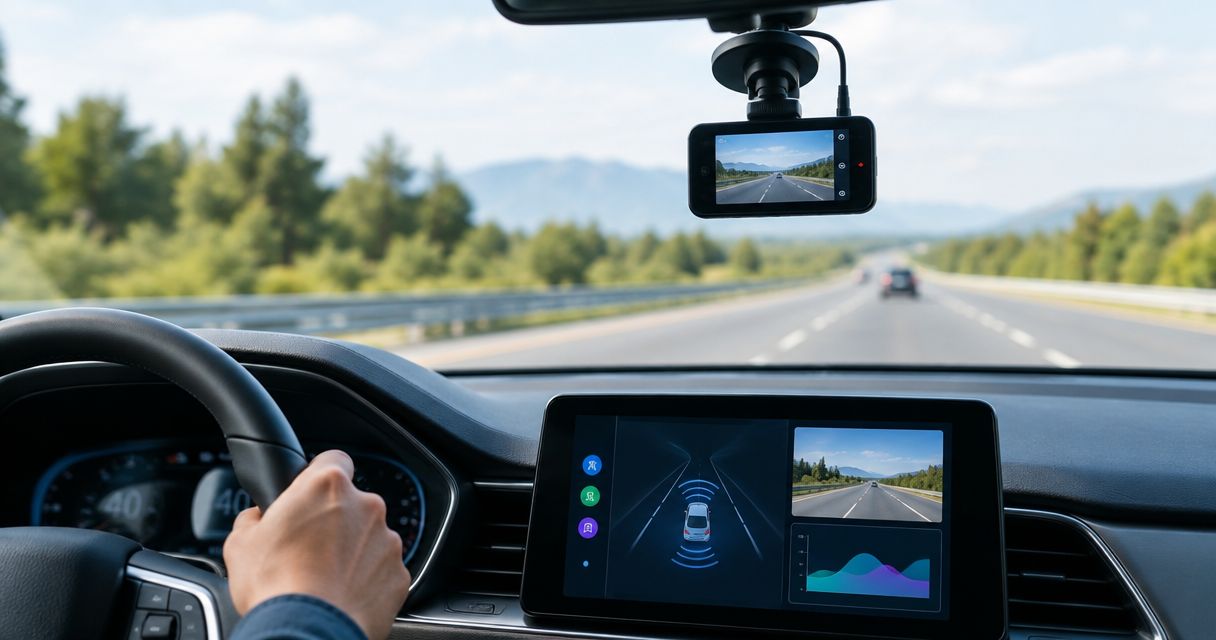
Best Android feature fit: DriveSight. Best video-quality benchmark: your phone’s native camera app. For the best dash cam apps ranked by video quality in 2026, choose by readable detail in saved footage—not by the largest resolution label or the longest feature list.
- For the best dash cam apps ranked by video quality, compare exported footage on the same phone.
- DriveSight suits Android drivers who want object detection, parking mode, crash detection, and live camera alerts.
- Your phone’s native camera app provides a reference clip, not a complete dash cam replacement.
- Check moving detail, night glare, and recording continuity before choosing your everyday recorder.
Why this matters
A recording can look sharp on your phone and still fail to show the detail you need after an incident. Glare, movement, compression, and a poor camera position all affect what survives in the saved file.
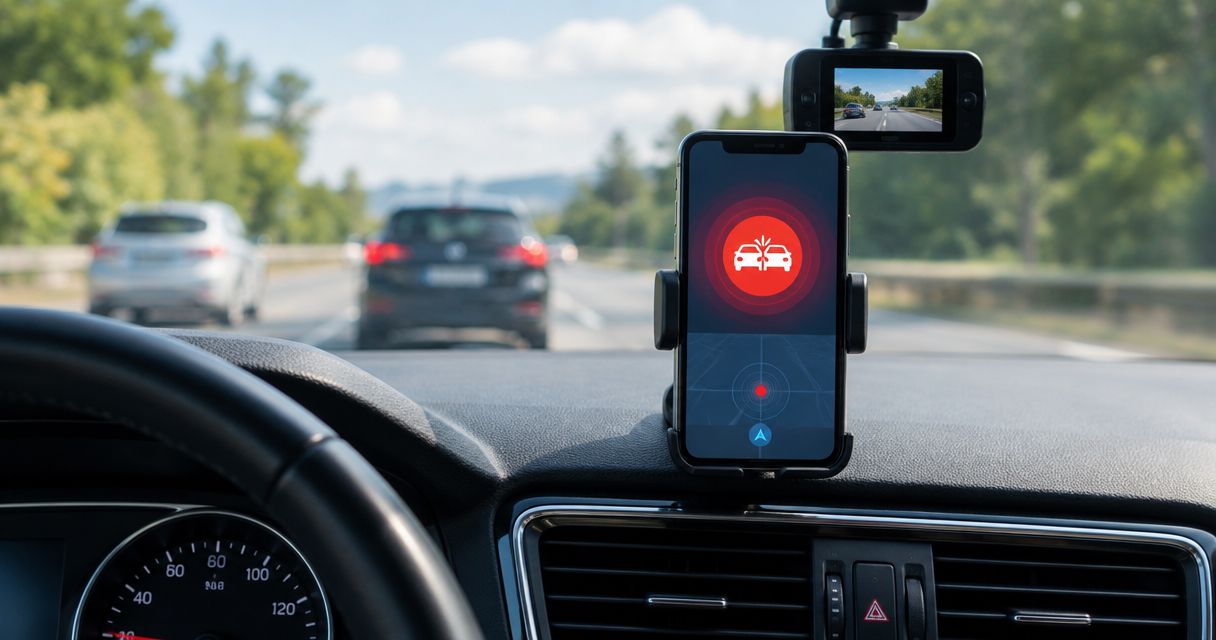
Phonedashcam offers DriveSight for Android drivers who want dash cam recording alongside object detection, parking mode, crash detection, and live police or speed camera alerts. Those capabilities explain its place in this guide. They do not establish a video-quality victory over another app.
Phonedashcam’s DriveSight is best for Android drivers who want a dash cam app with detection and driving alerts, rather than recording alone. If image detail is your deciding factor, compare actual files before making it your everyday recorder.
What makes the best dash cam app for video quality?
Use these criteria for your 2026 shortlist. A resolution setting is only one part of the decision.
- Moving detail: Can you distinguish road markings, nearby vehicles, and signs while the car moves? Inspect individual frames, not just smooth playback.
- Exposure control: Does the recording preserve useful detail around headlights, bright skies, and shaded roads? Look for lost information in bright and dark areas.
- Recording continuity: Does the saved footage cover the journey without unexplained gaps? A sharp clip cannot document a moment the app missed.
- Export quality: Judge the saved file you can retain or share. The live preview is not the evidence file.
- Phone suitability: Check the app on the phone you will actually mount. Its camera, operating conditions, and available storage belong in the comparison.
- Driving workflow: Evaluate recording alongside the features you intend to use. An app that works well during a short stationary check still needs an ordinary journey test.
Dash cam recording options at a glance
The order below ranks useful starting points by purpose, not measured image performance. DriveSight is the relevant dash cam app; the native camera app is a reference tool for checking whether a dash cam app loses visible detail.
| Recording option | Best for | Standout capability | Key limitation | Video-quality decision |
|---|---|---|---|---|
| DriveSight | Android drivers wanting detection and alerts with recording | Object detection, parking mode, crash detection, and live police/speed camera alerts | Android-focused; features do not establish image sharpness | Compare its exported footage on your own phone |
| Your phone’s native camera app | Establishing a same-phone reference clip | Direct access to the phone’s standard video recording workflow | Not a substitute for a purpose-built dash cam workflow | Use it to identify visible losses in a candidate app |
Do not treat this table as a claim that DriveSight records sharper footage than every alternative in 2026. A quality ranking needs comparable recordings, not a feature-count score.
1. DriveSight: best dash cam app for detection and alerts
DriveSight is an Android dash cam app offering object detection, parking mode, crash detection, and live police or speed camera alerts. Its strongest reason to enter your shortlist is that combination of recording and driving-related features.
For video quality, ask a narrower question: does DriveSight preserve the details you need on your Android phone? Keep the mount, camera view, and test conditions consistent when comparing recordings. Otherwise, a better camera angle can look like a better app.
DriveSight pros:
- Combines dash cam use with object detection.
- Includes crash detection and parking mode.
- Offers live police and speed camera alerts for everyday driving.
DriveSight cons:
- Its Android focus does not answer an iPhone recording requirement.
- Detection and alerts are not evidence of clearer moving footage.
- Parking security needs its own evaluation; a daytime driving clip does not establish parked recording performance.
Best for: Android drivers who want recording plus detection and alerts, and are willing to verify saved footage on their own phone.
Use Phonedashcam’s DriveSight as a feature-focused candidate, not an assumed image-quality champion. Check the recording while using the functions you expect to keep enabled.
Verdict: Hold until its saved footage passes your same-phone comparison; choose it when those additional features match your needs.
2. Your native camera app: best for a reference recording
Your phone’s native camera app gives you a practical reference for the image detail the phone can capture. Record a short comparison clip using the same camera, position, and conditions as the dash cam app.
This is a benchmark, not a recommendation to operate a camera app while driving. Configure everything while parked, and never handle the phone to start, stop, or inspect footage on the road.
Native camera app pros:
- Provides a reference from the same phone camera.
- Helps separate camera-placement problems from app-related differences.
- Lets you compare ordinary saved video with a dash cam app’s exported file.
Native camera app cons:
- A standard video recording workflow is not automatically a dash cam workflow.
- It does not establish that recording will continue correctly throughout your normal driving routine.
- It cannot stand in for evaluating the detection, alerts, or parking functions of a dedicated app.
Best for: Drivers who want to check whether a dash cam app visibly reduces detail compared with the phone’s standard recording.
Match the selected resolution and frame rate where both apps permit it. If those settings differ, note the difference rather than attributing every visual change to the app itself.
Verdict: Skip as your default dash cam recommendation; keep it as the reference tool for your video-quality test.
How to compare dash cam video quality in 2026
A repeatable comparison is more useful than screenshots from different phones. Follow this sequence before committing to an app.
Mount consistently
Use a secure mount and keep the camera view unobstructed. Clean the camera lens and the windshield area in front of it before comparing clips.
Keep the position unchanged between recordings. A different angle changes reflections, the amount of dashboard in view, and the size of distant objects in the frame. Follow applicable windshield-mounting rules and keep the mount out of your driving sightline.
Match settings
Match resolution and frame rate where possible. 1080p is 1920 × 1080 pixels; 4K UHD is 3840 × 2160 pixels. Those dimensions describe the frame, not whether a moving plate or sign will be readable.
A setting of 30 frames per second describes how many frames the video contains each second. It does not specify how sharply each frame captures movement. Do not declare a winner from settings alone.
Record safely
Configure the phone before moving. Use a familiar route that includes the conditions you actually encounter, such as shaded roads, intersections, or driving after dark.
Compare recordings in similar conditions. A daylight clip and a rainy night clip answer different questions, even when both come from the same app. Never create a dangerous situation to test recording or crash detection.
Inspect exports
Review the saved files after parking. Pause on nearby vehicles, signs, lane markings, and changes between bright and shaded areas.
Inspect the original exported file before sending it through a messaging service. A compressed copy can obscure whether the recording app or the sharing process lost detail.
Check continuity
Review the journey as well as its sharpest moment. Look for unexplained missing sections, interrupted recording, and files that do not open correctly.
Check that you can find and retain an important clip. A video-quality winner must produce footage you can actually retrieve.
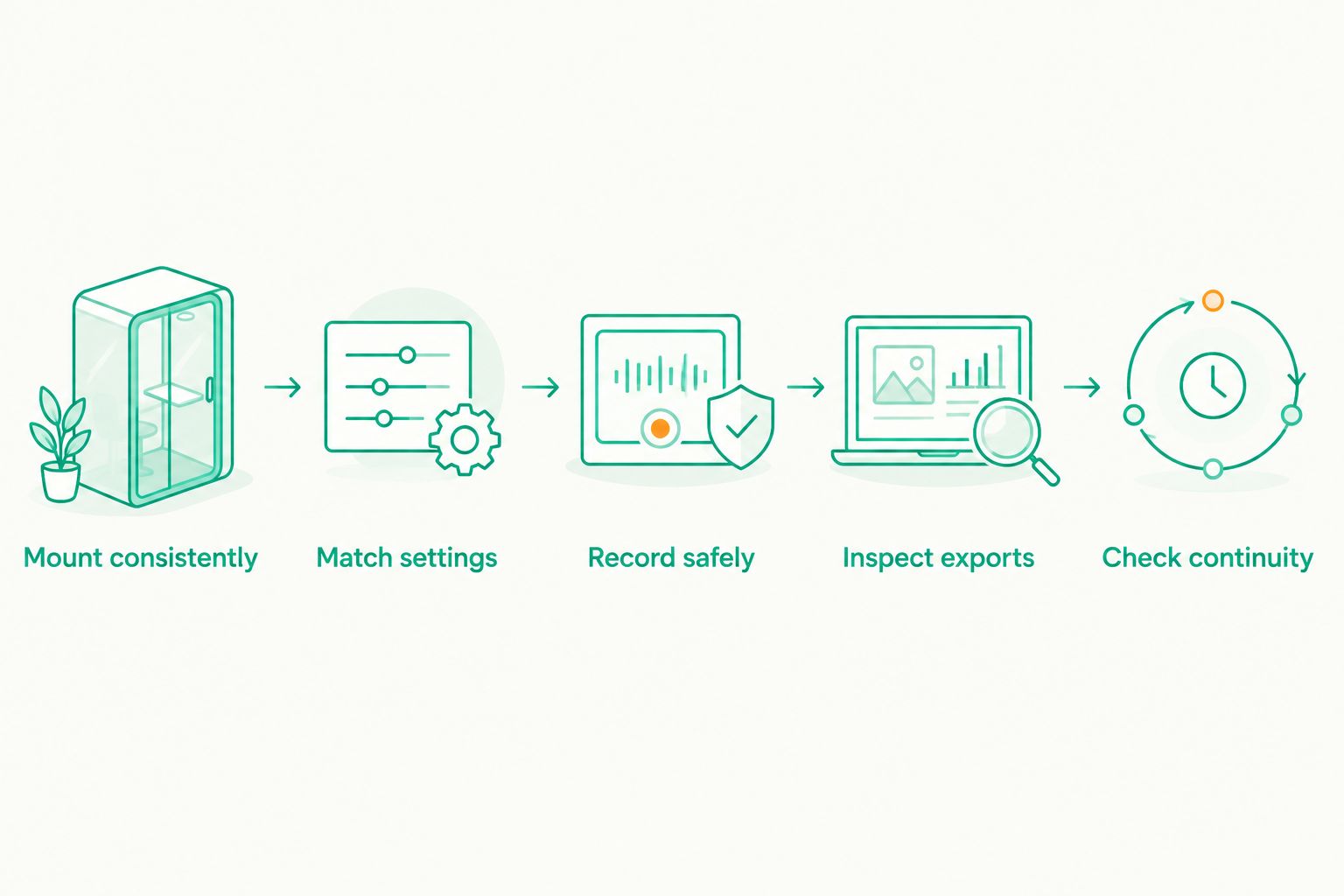
The sequence keeps hardware, placement, and file handling from being mistaken for app quality. Repeat it when a phone or recording-setting change affects your setup.
What to look for in difficult footage
Night driving: readable detail, not brighter video
A brighter night recording is not automatically a more useful recording. Check whether headlights wash out nearby details and whether signs remain distinguishable as they approach.
Judge the route you drive, not an attractive stationary sample. For a 2026 night-driving shortlist, prioritize useful detail in motion over the apparent brightness of the preview.
Movement: inspect frames, not just playback
Smooth playback can conceal blurred individual frames. Pause the file around the moment you would need to identify a vehicle’s position, a signal, or a road marking.
Keep expectations tied to the scene. Distance, camera angle, lighting, and movement affect readability; no resolution label guarantees that every license plate will be legible.
Windshield reflections: fix the view first
Dashboard reflections can cover useful parts of the scene. Check the recording from your actual mounting position before blaming the app for poor contrast.
Change the physical setup before repeating the comparison. Keep the revised position consistent across both apps so the next result remains meaningful.
Recording under normal use: test the whole workflow
Evaluate the app with the features you intend to use, not only in a stripped-down demonstration. Review whether the recording remains usable throughout that workflow.
Watch for device temperature warnings and recording interruptions. Follow your phone manufacturer’s operating guidance; do not leave a phone in conditions it is not designed to tolerate.
How we ranked these recommendations
The ranking separates feature fit from image-quality proof. DriveSight leads as the named Android dash cam candidate because its stated capabilities address recording, detection, alerts, and parking use. The native camera app follows because it supplies a practical comparison baseline.
Neither position represents a measured sharpness score. The criteria above—moving detail, exposure, continuity, exports, phone suitability, and workflow—determine the final choice on your device.
For Phonedashcam’s dash cam app, the same rule applies as for any candidate: keep it only if the saved footage works for your driving conditions. Extra features do not excuse an unusable recording.
Which dash cam recording option should you choose?
Start with DriveSight if you use Android and want detection, parking mode, crash detection, and live camera alerts. Then compare its saved footage against a same-phone reference before treating it as your everyday recorder.
If video quality is your only priority, let the files decide. Choose the dash cam app that retains the most useful moving detail and records your journey consistently—not the one with the most impressive settings screen.
For your 2026 setup, keep the original files from that comparison. They give you a reference when you change phones, adjust the mount, or revise recording settings.
FAQ
What's the best dash cam app for video quality in 2026?
Choose the dash cam app that preserves the most useful detail in exported footage on your phone. DriveSight is an Android candidate for drivers who also want object detection, parking mode, crash detection, and live police or speed camera alerts; those features alone do not establish a video-quality winner.
Is DriveSight better than my phone's camera app?
DriveSight addresses a different use case: Android dash cam use with detection, parking mode, and driving alerts. Your native camera app is useful as a same-phone video reference, but it does not replace evaluating a dedicated dash cam workflow.
Does 4K always make a dash cam app better than 1080p?
No. 4K UHD has more pixels than 1080p, but resolution alone does not establish readable moving detail. Compare saved footage for blur, glare, exposure, and continuity.
How do I compare two dash cam apps fairly?
Use the same phone, mounting position, and similar driving conditions, with matched recording settings where possible. Configure everything while parked, then inspect the original saved files after the journey.
Can a dash cam app guarantee readable license plates?
No app setting guarantees readable license plates in every scene. Distance, camera angle, lighting, movement, and the phone camera affect what the recording captures.
Should I judge video quality from the live preview?
No; judge the saved file you can retain or export. A preview does not establish the detail available in the final recording, and a shared copy can differ from the original file.
Does good driving footage prove that parking mode works well?
No. Parking mode needs a separate evaluation of recording behavior, power arrangements, and saved footage while parked. DriveSight offers parking mode, but a daytime driving comparison does not establish its performance in your parked setup.
One last thing
The most useful comparison frame is not necessarily the sharpest one. Find the moment when the scene changes: a vehicle moves across your view, the road enters shadow, or headlights approach.
Choose for the difficult moment, not the attractive sample. A saved recording that preserves context during that transition is more useful than a clean frame captured while nothing moves.